Printing Guide
Last updated on January 29, 2025
Quick Start
1. Generate Your Proxies
- Add your cards to the deck list
- Click "Generate Cards"
- Click "Download PDF" or "Print Sheets"
2. Print Settings
- 100% Scale
- Normal Margins
- DO NOT USE BORDERLESS PRINTING
3. Cut & Sleeve
- Cut along the guide lines
- Sleeve your proxies
- Shuffle up and play!
Test Print
Test your printer alignment before printing your full deck. Adjust settings and generate a test page with 9 cards.
Card Type Divider Labels
Generate divider labels to organize your collection by color and card type. Includes all mono-colors, colorless, lands, and two-color guild combinations.
Box Labels
Generate labels for card storage boxes (1" × 2-5/8" labels, Avery 5160 style). Includes White, Black, Blue, Red, Green, Colorless, Hybrid, Lands, and Misc.
Printer Settings
✓ Use These Settings
- Paper Size: Letter (8.5" × 11")
- Scale: 100% (Actual Size)
- Margins: Normal (NOT Borderless)
- Quality: 300 DPI
- Paper Type: Match Your Actual Paper
✗ Avoid These Settings
- Borderless/Full Bleed: Causes Auto-Scaling
- Fit to Page: Changes Card Size
- Auto Scale: Unpredictable Sizing
- Draft Mode: Poor Image Quality
Common Problems & Solutions
Cards are too large
Cause: Borderless/Full Bleed printing is enabled
Solution: Turn OFF borderless printing, use normal margins at 100% scale
Cards are too small
Cause: Scaling is not set to 100%
Solution: Set "Page Scaling: None" or "Scale: 100%" or "Actual Size"
Poor Image Quality
Cause: Low print quality settings
Solution: Set quality to 300 DPI, avoid "Draft" mode
Fronts and Backs don't align
Cause: Duplex printing mechanical offset
Solution: Use the "Advanced Printer Settings" on the Generator page to apply printer specific adjustments
Double-Faced Cards & Two-Sided Printing
Important: Flip Along Long Edge
When printing with "Print double-faced cards" or "Proxy card backs" enabled, Sheet 2 (back sheet) is automatically horizontally mirrored to ensure proper alignment when printing double-sided.
⚠️ Critical Setting: You MUST use "Flip on long edge" (also called "Long-edge binding") in your printer settings. Using "Flip on short edge" will result in misaligned cards.
How It Works:
- Sheet 1 (Front): Card fronts printed in normal left-to-right order
- Sheet 2 (Back): Card backs printed horizontally mirrored (right-to-left)
- Result: When you flip Sheet 1 over along the long edge and print Sheet 2 on the back, the cards align perfectly
What Gets Printed on Back Sheets:
- Double-faced cards: The actual back face of the card (when "Print double-faced cards" is enabled)
- Single-faced cards: Proxy card back or Magic logo (when "Proxy card backs" is enabled)
- Empty slots: Left blank (no printing)
Recommended Products
As an Amazon Associate, we earn from qualifying purchases.
Tools and supplies we recommend for printing and cutting high-quality proxies.
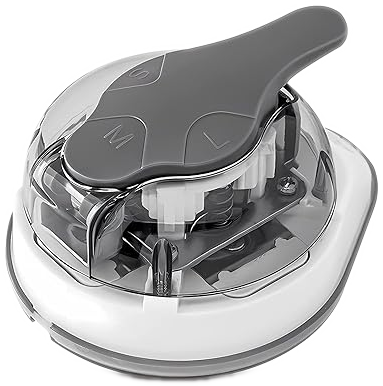
Corner Cutter
Sun-Star Kadomaru Pro
- 3 corner sizes: S (3mm), M (5mm), L (8mm)
- Use Small (S) setting for MTG cards
- Cuts 3-4 sheets at once
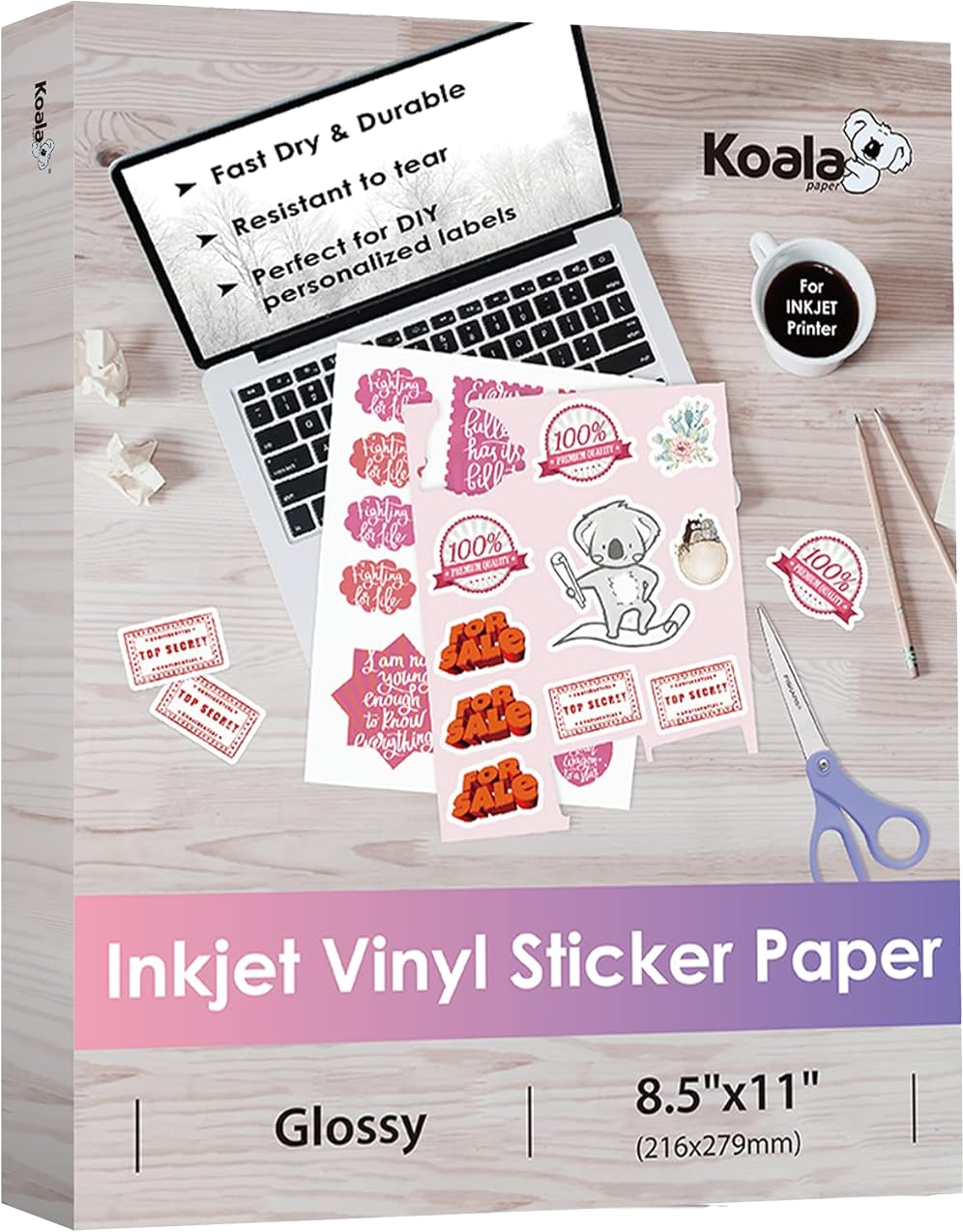
Vinyl Sticker Paper
Koala Printable Vinyl
- 100 sheets, 8.5x11"
- Glossy white, water-resistant
- Inkjet compatible (dye ink only)
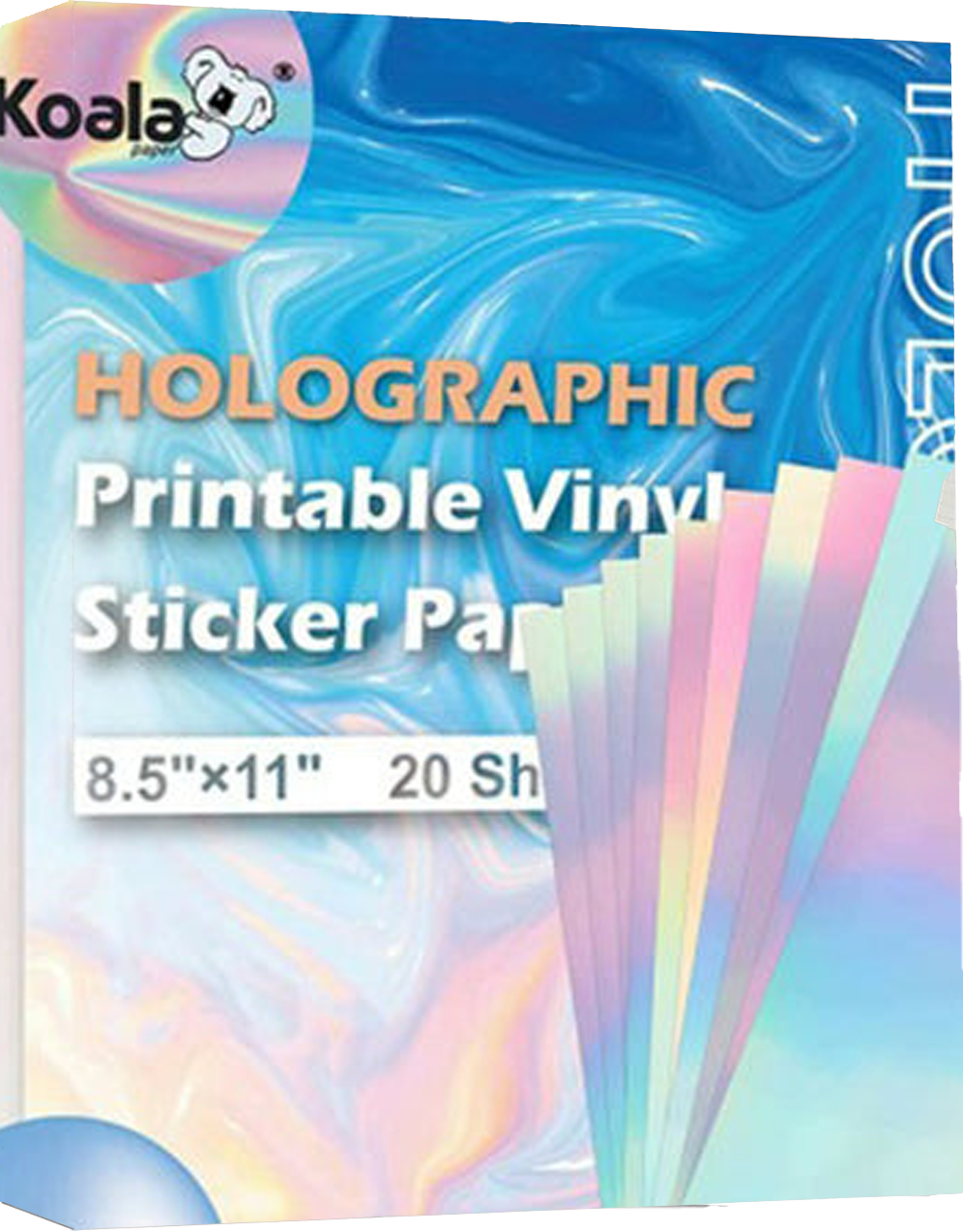
Holographic Sticker Paper
Koala Holographic Vinyl
- 20 sheets, 8.5x11"
- Rainbow holographic finish
- Inkjet compatible (dye ink only)
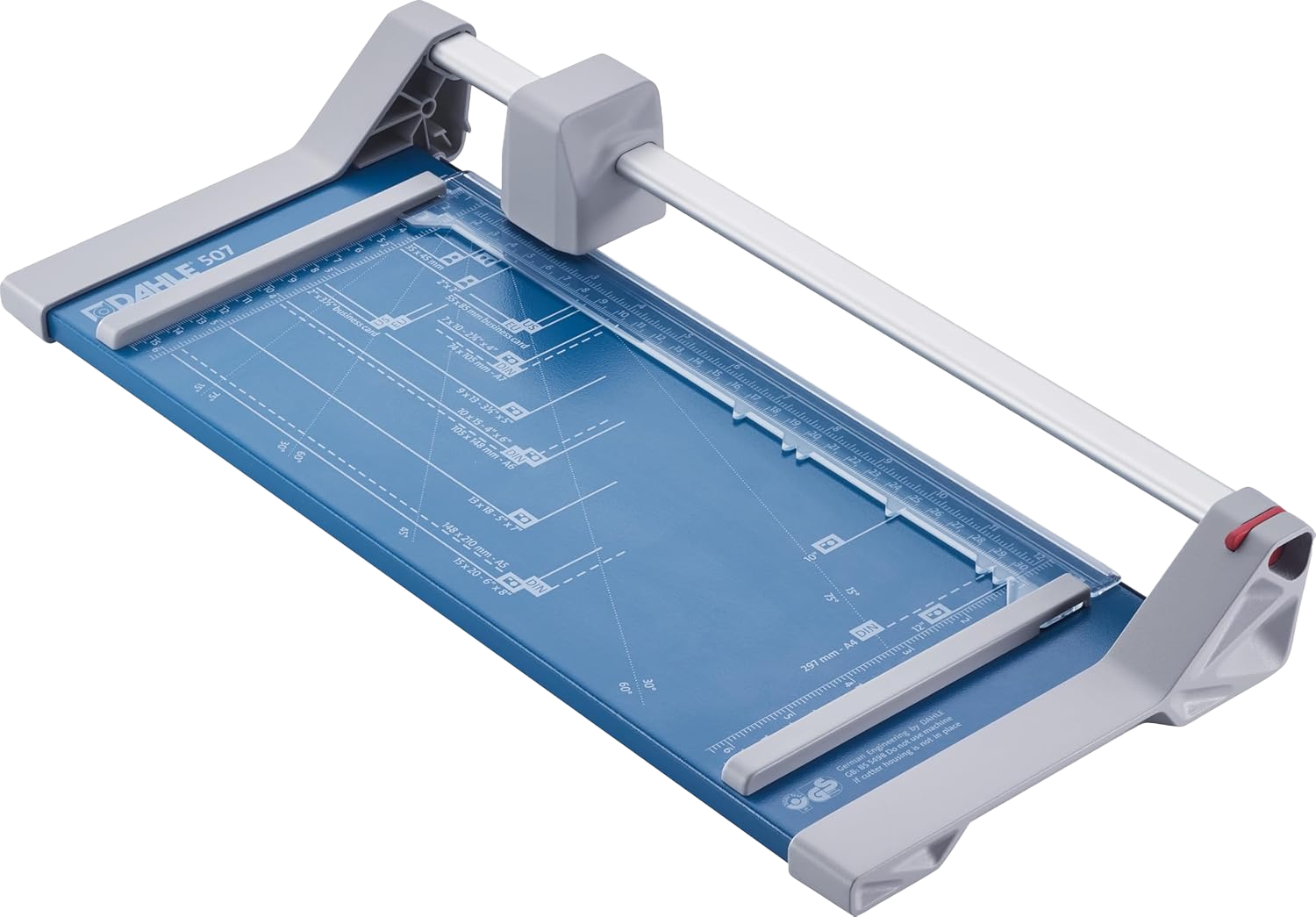
Rotary Trimmer
Dahle 507 Personal Trimmer
- 12" cutting length
- Cuts up to 7 sheets
- Self-sharpening blade
mtgproxy.net is unofficial Fan Content permitted under the Fan Content Policy. Not approved/endorsed by Wizards. Portions of the materials used are property of Wizards of the Coast. ©Wizards of the Coast LLC.